To save files, open this page in Safari.
This app's browser often cannot save files. Tap the menu (three dots) and choose Open in browser or Open in Safari.
To save files, open this page in Chrome.
This app's browser often cannot save files. If the link does nothing, tap the menu (three dots) and choose Open in browser.
Burn subtitles into a video
Open your subtitle file, choose your video, pick how the lines look, and save a new MP4 with them drawn into the picture. Free, no watermark, and nothing is uploaded.
Drop a subtitle file hereOpen a subtitle file
SRT, VTT, ASS, SSA, SBV, SMI, TTML, TXT, or a ZIP from a subtitle site
Your file stays on this device. Nothing is uploaded. How?
How it works
- 1 Open your subtitle file SRT, VTT, ASS, SSA or SBV. It is checked as it opens, so you can fix the timing or garbled letters before they are drawn into the picture for good.
- 2 Choose your video and a style An MP4, MKV, MOV, M4V or WebM file, read from your device in parts and never uploaded. Pick a ready-made style or your own, and check it on a frame of your video.
- 3 Burn and save A new MP4 named after your video plus the language code, with the lines in every frame. The page says how long it will take. Your original video is not changed.
Your files stay on this device
Opening, checking, fixing, syncing and converting all happen in your browser. Your subtitle file and its text are never sent to our server, so we never store or log them.
Burned in or as a track
Burning in, also called hardcoding, draws every line into the frames of the video. The result is a new MP4 that shows the subtitles in any player, app or website, with nothing to switch on. The price is that they can never be turned off, resized or replaced, and that every frame is encoded again, which takes time.
Burn in when the video goes somewhere that ignores subtitle files: TikTok, Instagram Reels and Stories, Threads, a WhatsApp message, a presentation, a TV that does not show your SRT. Most YouTube Shorts are burned in too, since the same clip is posted to TikTok and Reels.
Keep a track when the video is for a TV, a media server or your own laptop, or when people may want the subtitles off: add subtitles to a video as a track puts them into the file in seconds, without touching the picture. YouTube, Facebook, LinkedIn and X take a subtitle file uploaded beside the video, which viewers can turn off.
Before and after
One frame of the short film Tears of Steel, before and after its English subtitles were burned in with this page, in the Classic style, white text on a box, at Medium size:
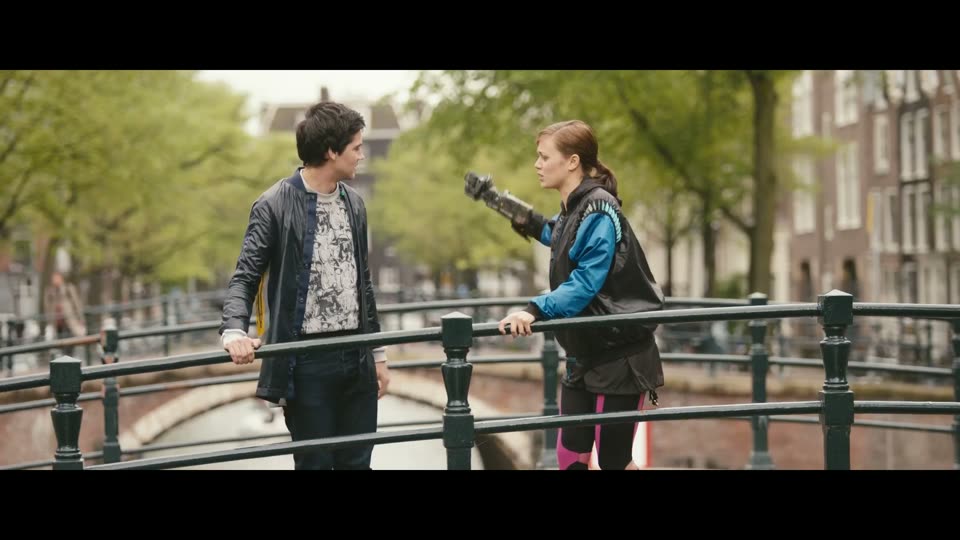
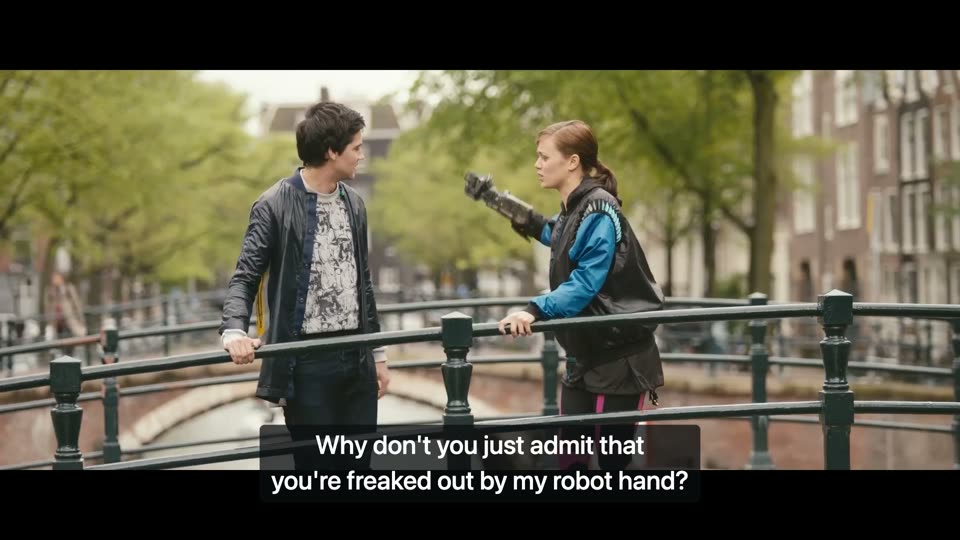
The preview on this page is drawn by the same code as the new video, so the frame you check before you start is the frame you get.
Lines people can read
Once burned in, the lines cannot be fixed by the viewer, so they need to read well on any screen, over any part of the picture.
- Size. The size is set as the player sets it, by the height of the picture, so Medium on a vertical phone video is as easy to read as Medium on a film. Choose Large or Extra large for videos people watch on a phone.
- Outline or box. White text with an outline reads well on most video. Over snow, sky or busy scenes, a box behind the text is safer. Without an outline, a shadow or a box, the page warns you, since the picture behind the lines is not known.
- Position. Short videos have buttons, captions and a progress bar at the bottom and on the right. Move the lines up with Distance from edge so that TikTok's and Instagram's buttons do not cover them, and check a few lines with Previous line and Next line.
- Fonts. The device's standard fonts, or one of four bold caption fonts (Montserrat, Poppins, Anton and Bebas Neue), shown in themselves in the font row.
ASS styles and two languages
An ASS or SSA file can keep its own look: with Keep the file's styles, each line is drawn with its style's font, size, colors, outline or box, shadow and margins, and placed where the file puts it, signs at the top included, scaled from the script's resolution to your video. Effects that move are drawn without the motion, and the page counts them before you start: movement, fades, animations, clipping, rotation, drawings, karaoke timing and blur. Fonts named in the file are used when your device has them.
A file with two languages in each line, such as one made with bilingual subtitles, opens here with the two-language settings in view: show both languages or only one, make the second smaller, and set the space between them.
Quality, size and time
Burning in means the picture is decoded and encoded again as H.264, the video format every phone, browser and platform plays. The new video keeps your video's width, height and frame rate. It is encoded at 5 Mbit/s for 1080p, more for larger pictures and less for smaller ones, so a minute of 1080p comes to about 38 MB, whatever the original was. A small, heavily compressed video can come out larger than it went in; a film from a camera usually comes out smaller.
The sound is copied as it is when it is AAC or MP3. Other sound is converted to AAC where your browser can; where it cannot, the page says what happens to the sound before you start, and asks you when there is a choice. HDR and 10-bit video become standard 8-bit, and the video's own subtitle tracks are left out; the page lists what changes for your video before you press Burn and save.
Every frame is drawn and encoded again, so it is not instant. On a recent Mac, a minute of 1080p video took 6 to 21 seconds, depending on the browser. Once a burn has run for 30 seconds of video, the page says how much time is left on this device.
Phones and long videos
Your video never leaves your device, so there is no upload, no size limit and no queue, and the page holds only one frame in memory at a time.
- Chrome and Edge on a computer ask where to save the new video and write it there as it is made, so a long film needs no extra room.
- Other browsers make it in the browser's own storage and then download it, so they need free space as large as the new video.
- Safari may stop a long burn when its window goes to the background. Keep the window in front, or use Chrome, Edge or Firefox for videos over 10 minutes.
- Phones have not been timed yet. They encode more slowly than computers, and the page says so when the time left is over 10 minutes. Keep the screen on and this page open. On an iPhone the video goes to Files, not to Photos; use Share to save it to Photos.
Common problems
| What you see | Why, and what to do |
|---|---|
| This browser can't make MP4 video | The browser has no H.264 encoder. Use a recent Chrome, Edge, Firefox or Safari |
| The lines are early or late in the new video | The subtitle file does not match this video. Sync it first, then burn again |
| The lines are hidden under TikTok's buttons | Choose Top, or raise them with Distance from edge, then burn again |
| Safari stopped making the video | Safari pauses work behind other windows. Try again with the window in front |
Frequently asked questions
Is there a watermark?
No. The new video has your subtitles and nothing else: no logo, no watermark, no sign-up and no limit on length.
Is my video uploaded?
No. Your browser reads the video, draws the lines and writes the new MP4 on your device. Nothing of it is sent: not the picture, not the subtitles, not the file name.
Does it change my original video?
No. Your video is only read. The new MP4 is a copy, saved under a new name: Holiday.mkv with English subtitles becomes Holiday.en.mp4.
Can I turn burned-in subtitles off later?
No. They are part of the picture. Keep your original video and the subtitle file, so you can burn again with a change, or add the subtitles as a track instead.
How do I burn subtitles in another language?
Translate the subtitle file first, then open the translation here, or burn both languages from a bilingual file.