To save files, open this page in Safari.
This app's browser often cannot save files. Tap the menu (three dots) and choose Open in browser or Open in Safari.
To save files, open this page in Chrome.
This app's browser often cannot save files. If the link does nothing, tap the menu (three dots) and choose Open in browser.
Animated captions for Reels, Shorts and TikTok
Open your video, and the speech in it becomes short captions with the spoken word highlighted, burned into a new MP4 on your device. Free, no watermark, nothing uploaded.
Drop a video or sound file hereOpen a video or sound file
MP4, MKV, MOV, WebM, MP3, WAV, M4A and more
Your file stays on this device. Nothing is uploaded. How?
How it works
- 1 Open your video The MP4 or MOV from your phone, or any MKV or WebM, picked or dropped. It is read from your device and never uploaded.
- 2 Make the captions Press Make subtitles, and the speech becomes lines with the time of every word. Or open a subtitle file you already have, and the times of its words are estimated.
- 3 Pick a style and burn Choose Bold, Box, Pop or Clean, watch it play over your video, then Burn and save a new MP4. Your original video is not changed.
Your files stay on this device
Opening, checking, fixing, syncing and converting all happen in your browser. Your subtitle file and its text are never sent to our server, so we never store or log them.
Why short videos burn their captions in
Most people scroll through Reels, Shorts and TikTok with the sound off, so a video without words on screen loses them in the first second. TikTok and Instagram take no subtitle file at all: the only way to show captions there is to draw them into the picture. YouTube Shorts accepts a file, but the same clip usually goes to all three apps, so one MP4 with the captions burned in is what creators post.
The look matters too. Short-form captions show a few words at a time, large, in the middle of the screen, with the word being said picked out in color, so viewers read along at the speed of speech. This page makes exactly that, on your device.
How the captions are made
- The words and their times. With Make subtitles, Whisper, an open speech recognition model, listens to your video inside your browser and writes down what is said with the moment each word starts. If you open a subtitle file instead (SRT, VTT, ASS and the rest), its lines are used as they are, and the time of each word is spread over its line by length. The page then says "Word times are estimated from each line's length", since the highlight may run a little ahead of or behind the voice.
- Short captions. Each line becomes captions of one, two or three words (you choose), cut first at the end of a sentence, a comma or a pause, so a caption never runs across two sentences. Chinese and Japanese are counted by characters. No word is changed, dropped or reordered: the captions hold exactly the words of the lines.
- The look. The captions play over your video right on the page, drawn by the same code that draws the new video, so what you see while it plays is what you get.
- Burn and save. Every frame is drawn again with its caption and saved as a new MP4, at your video's own size and frame rate, with its sound. Nothing is cropped or reframed.
The four styles
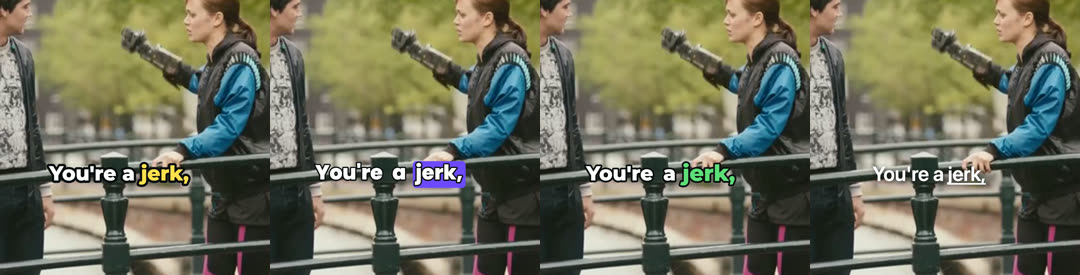
- Bold: heavy white letters with a thick dark outline, the spoken word in yellow. The look most short videos use.
- Box: white letters, the spoken word on a rounded colored box.
- Pop: the spoken word a size larger, and in color.
- Clean: your device's own letters with a soft shadow, the spoken word underlined.
Each style takes your own font (the device's fonts, or Montserrat, Poppins, Anton and Bebas Neue), text color and highlight color, with six ready colors and Any color for the rest. Capital letters is a look only: the captions are drawn in capitals, and the caption file you download keeps its own letters. The page remembers your choices in this browser.
Kept clear of the buttons
Each app covers part of the picture with its own buttons, the account name and the post's text: the right edge and the bottom third. The captions stay inside the part that all three leave free, using the strictest figure of each side from the safe zones Meta publishes for Reels ads and Google's template for Shorts: 15% from the top, 35% from the bottom, 6% from the left and 18% from the right. Choose Lower middle (the usual place), Middle or Upper. Lower puts them further down, 23% from the bottom, below the speaker's face; on some apps a long post text can cover them there. A video wider than tall keeps ordinary margins instead.
Captions for your editor
If you finish your video in Premiere, DaVinci Resolve or another editor, download the captions instead of burning them: Download captions (VTT) keeps the time of every word as WebVTT timestamps, and Download captions (ASS) as karaoke times, which editors and players that animate captions read. The plain line file is also there, with Download lines (VTT).
How long it takes
Making the subtitles takes about a twentieth of the video's length in Chrome on a fast laptop, and about a seventh on the processor in Firefox or Safari. Burning a one-minute vertical video took 6 to 21 seconds on the same laptop, depending on the browser. Phones were not measured yet: expect them to be several times slower. The panel says how long the burn has left once it has done the first 30 seconds of picture.
Private
Your video, its sound and its words never leave your device. The only download is the speech model, once, from our own server. There is no account, no watermark and no limit on length.
Common problems
| What you see | Why, and what to do |
|---|---|
| The highlight runs ahead of the voice | The word times are estimated from a subtitle file. Make the subtitles from the speech instead, on this page |
| The captions hide a face | Choose Upper or Middle under Font, colors and place |
| A caption shows one word too long | Pick three words per caption, or fix the line's timing in the editor |
| "This browser can't make MP4 video" | Your browser has no H.264 encoder. Use Chrome, Edge, Firefox or Safari |
| No preview, but Burn and save is there | Your browser can't play this video on the page. The burn reads the file itself and may still work |
| Names spelled wrong | Fix the word in the line list before you burn: the captions follow your edits |
Frequently asked questions
Is my video uploaded?
No. The speech, the captions and the new video are all made in your browser.
Is there a watermark?
No. The new video has your captions and nothing else.
Does it make my video vertical?
No. The new MP4 keeps your video's own size and frame rate. The captions are placed for vertical video, which is what Reels, Shorts and TikTok show full screen.
Can I edit the words?
Yes. The lines open in the editor before you burn: change any word or time, and the captions follow.
Can I caption a video in another language?
Yes. Whisper understands about 99 languages, best the widely spoken ones. You can also translate the subtitles first and burn the translation.
Can each speaker have their own color?
Yes. Turn on Color by speaker and each person's captions take their own color, which you can change there. It runs on your device, for free.